

Checkout App V3 — Quick Reference
Effective August 3, 2026 · A print-ready PDF with all screenshots embedded is attached below — print it and keep it at the station.
Printable version
Section titled “Printable version”The return station (SRS) has its own page: Return Station V3 — Quick Reference (SRS)
Overview
Section titled “Overview”Checkout runs on the phone on the stand. The phone has two separate readers attached — it helps to know which is which:
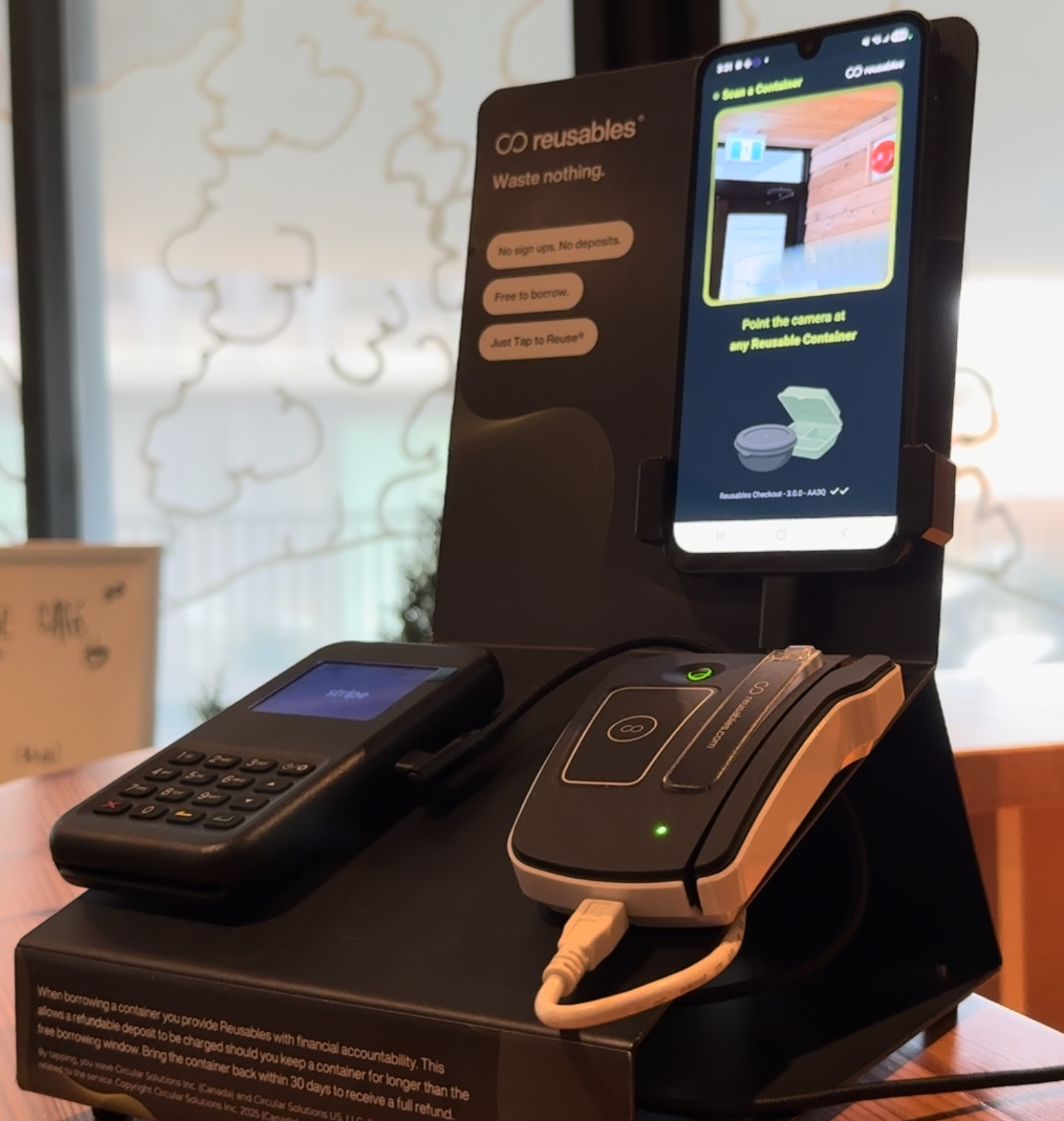
The core checkout is two steps, and covers most transactions:
- Scan the container
- Tap the Payment Card Reader with a card or mobile wallet
That’s it — the rest of this page covers other ways to identify a reuser and less-common situations, in their own sections at the end.
Glossary
Section titled “Glossary”- Reuser — the customer checking out or returning a container.
- Container — a Reusables container being checked out or returned.
- Payment Card Reader — the reader a reuser taps a credit/debit card or mobile wallet on. This is the main way to identify a reuser.
- Student Card Reader — a separate reader (at sites that have one) for tapping a Student ID card.
- Reuser ID — a reuser’s personal QR pass, scanned with the phone camera, obtained via app signup.
- Member number — a reuser’s ~5-digit number, typed in via Lookup.
Core checkout flow
Section titled “Core checkout flow”Step 1 — Scan the container
Section titled “Step 1 — Scan the container”On the idle screen, point the camera at any Reusables container. Once it’s scanned, the identify window opens.
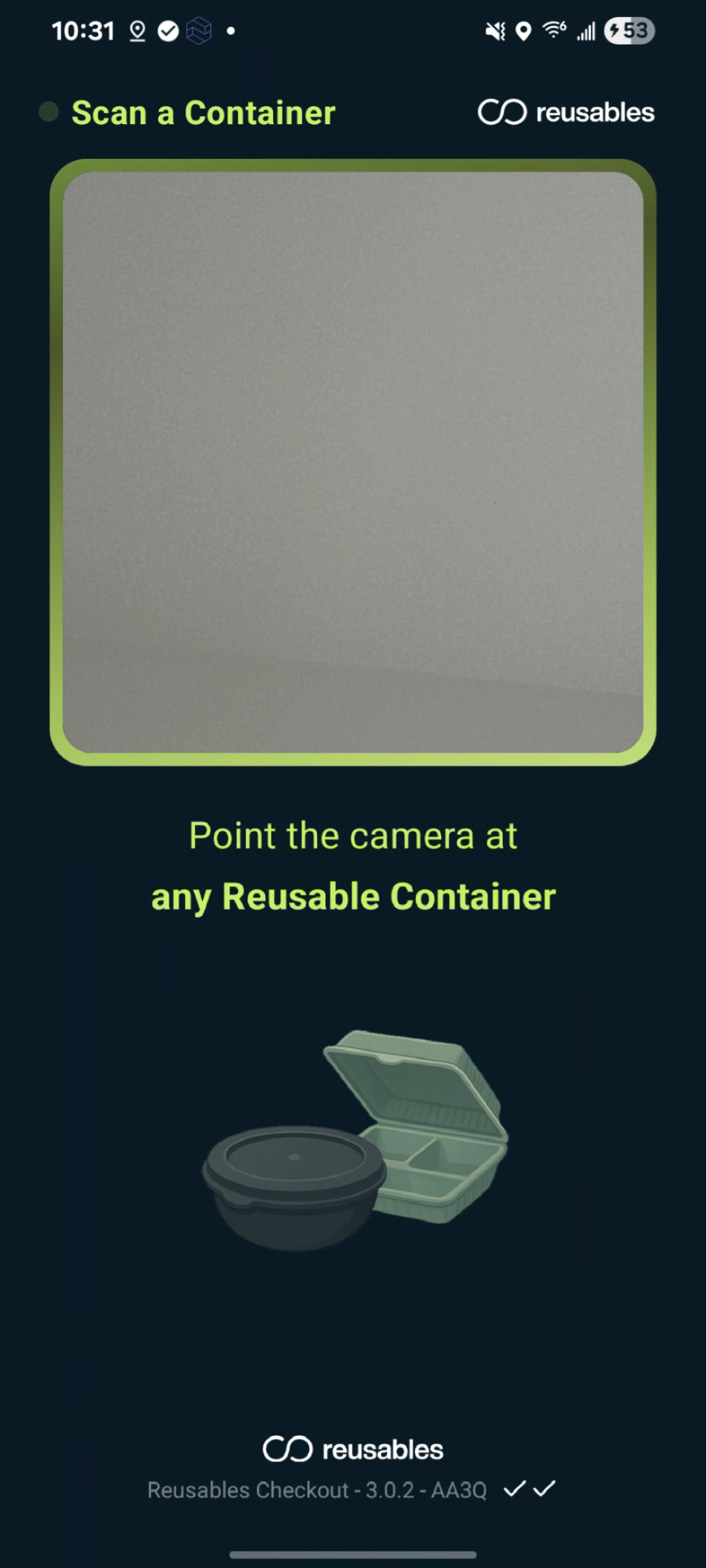
Step 2 — Tap the Payment Card Reader
Section titled “Step 2 — Tap the Payment Card Reader”The reuser taps a credit/debit card or mobile wallet on the Payment Card Reader. Their first use links that card to their newly created account; after that, the same card will always yield the same account — no card details are stored on the device.
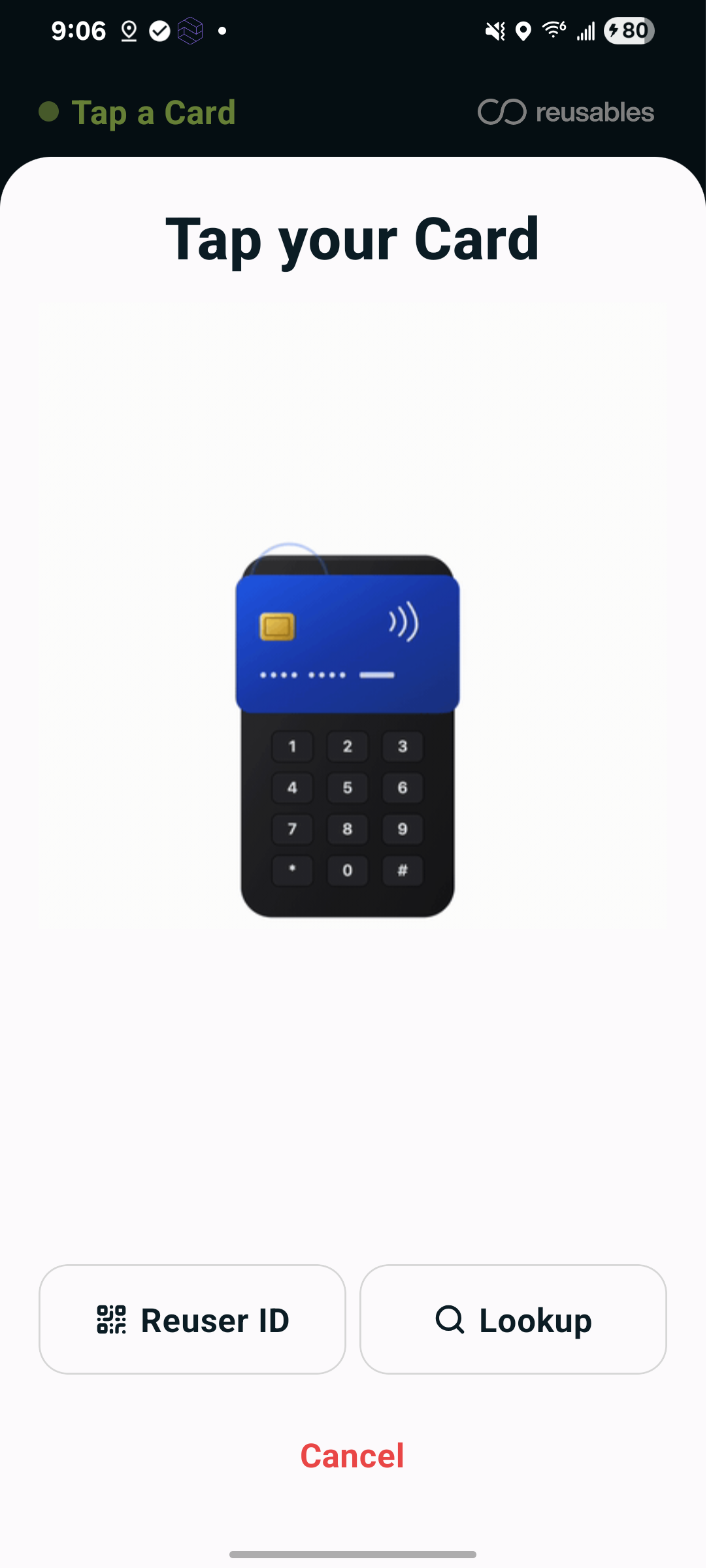
Step 3 — What you’ll see after
Section titled “Step 3 — What you’ll see after”Once the reuser is identified, the window moves through these states on its own — no action needed:
- Validating — a brief spinner confirms the card or ID.
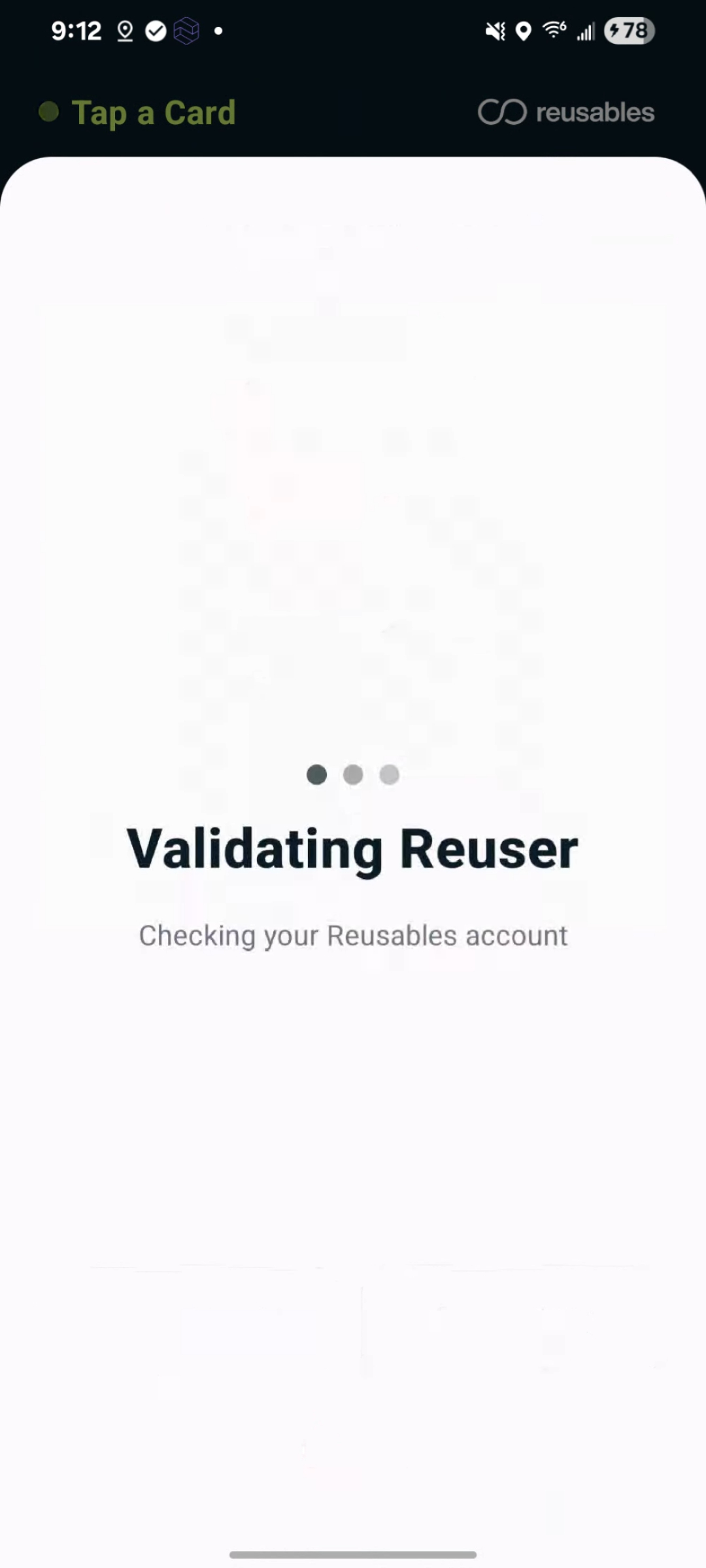
- Assigning Container — the container(s) get linked to the reuser.
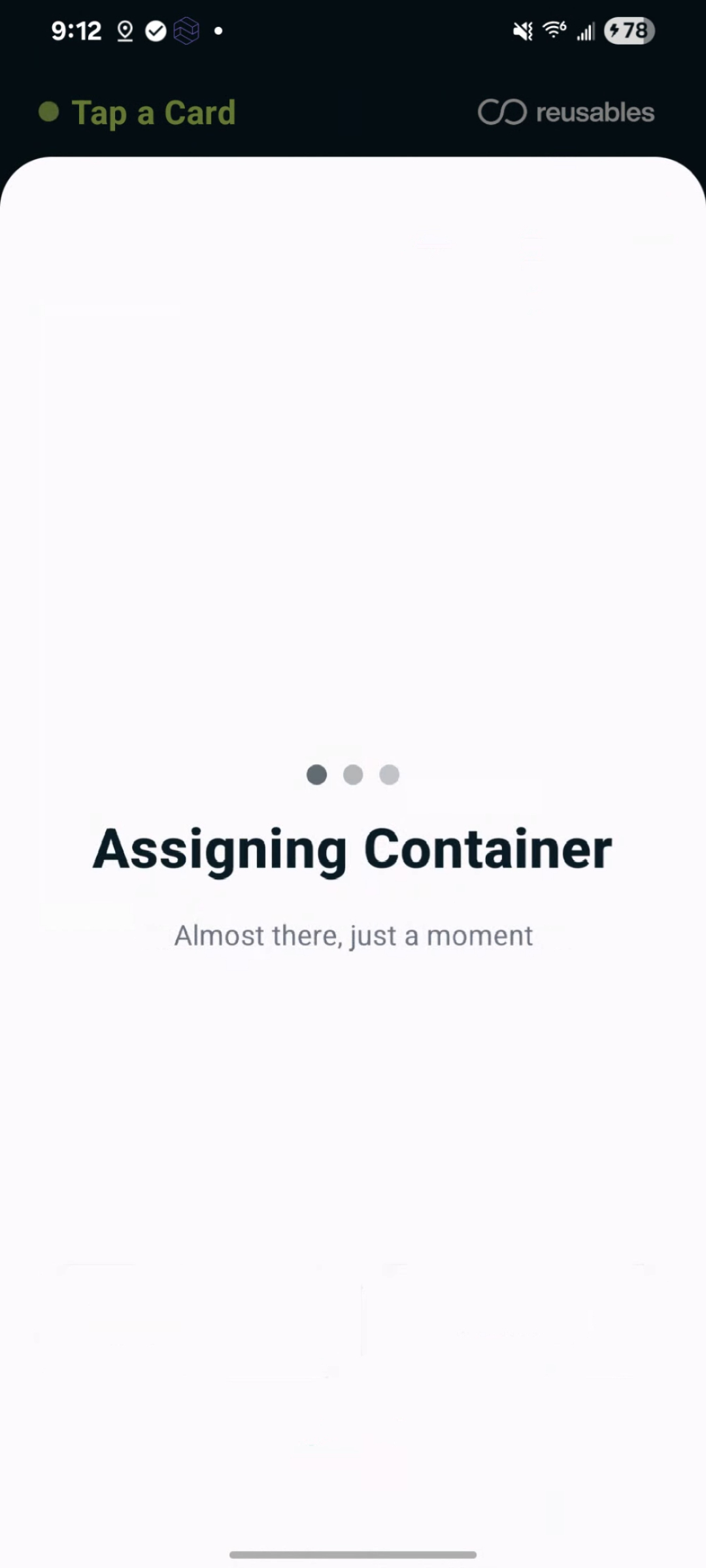
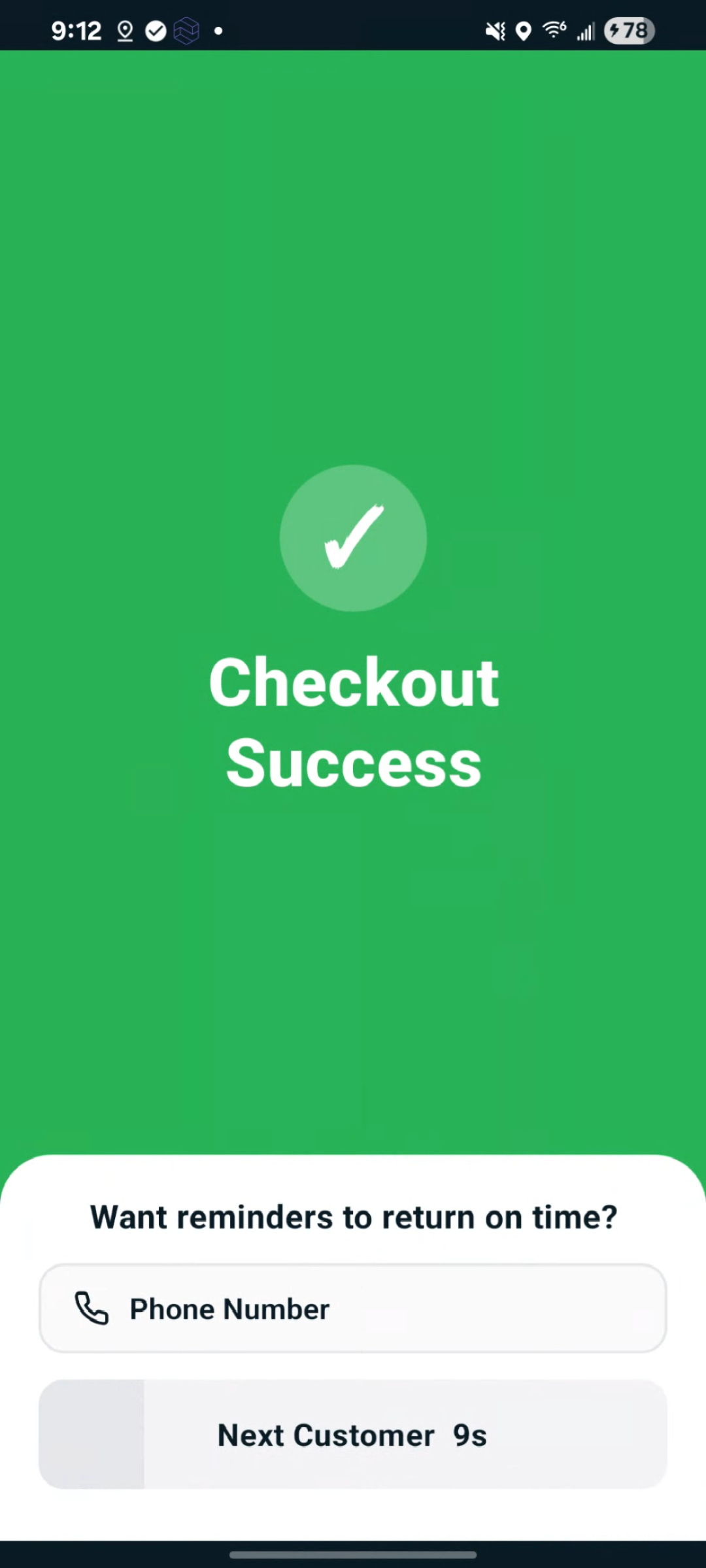
- Success — a green confirmation screen. It may ask for the reuser’s phone number (for return reminders), then closes on its own after a few seconds. Tap Next Customer to close it right away.
That covers the everyday flow. The sections below are for specific situations — go straight to the one you need.
Other situations
Section titled “Other situations”Multi-container scan
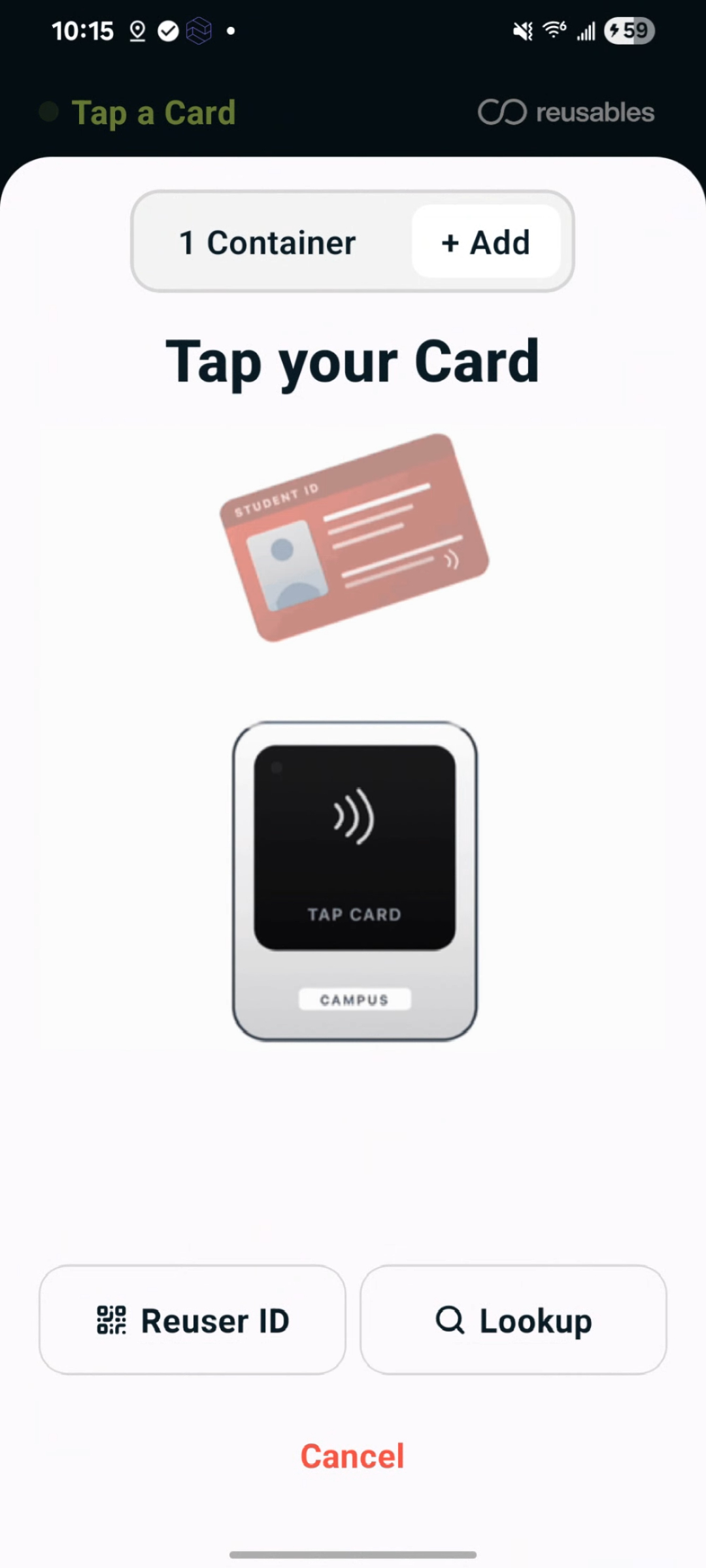
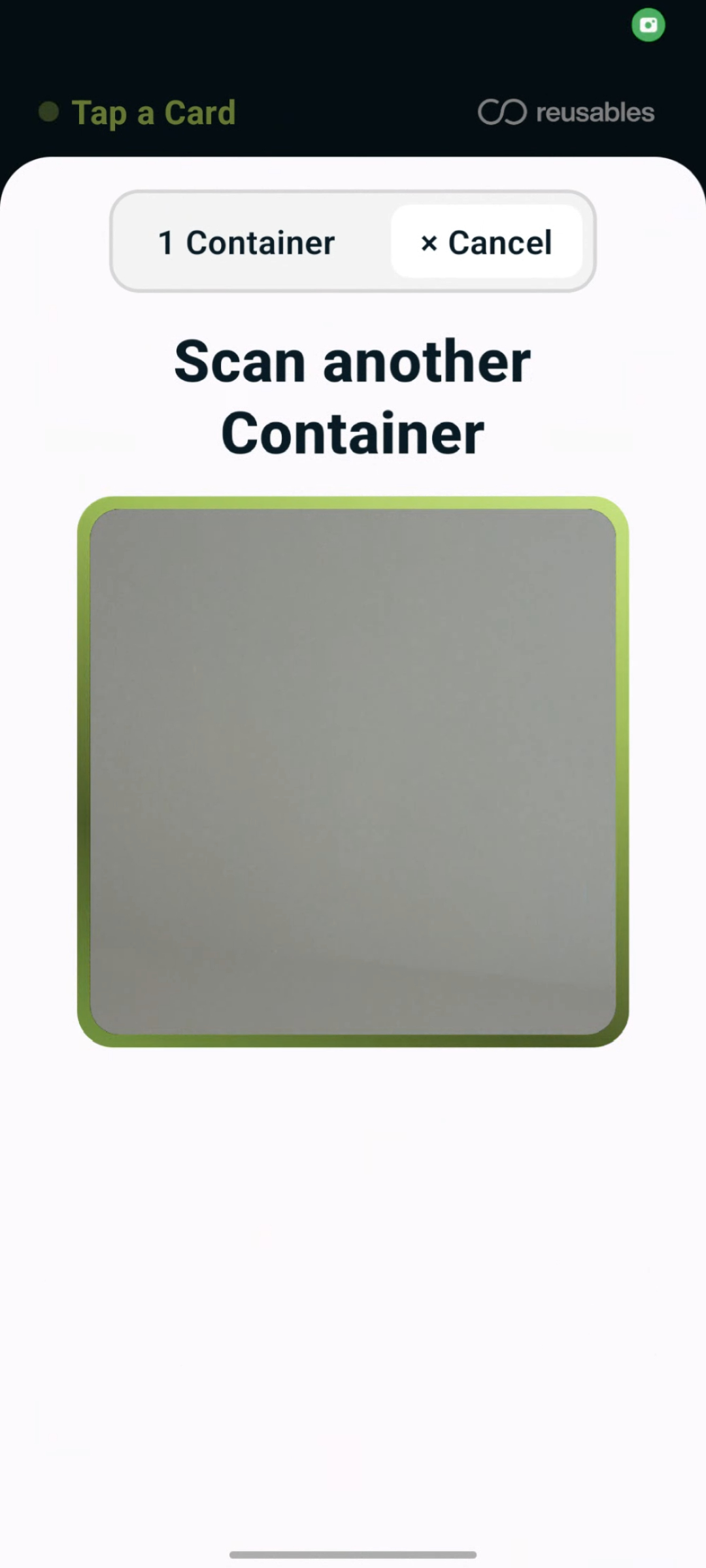
Section titled “Multi-container scan”To check out more than one container to the same reuser, use the container counter at the top of the window (e.g. “1 Container”). Tap + Add and scan the next container — repeat for as many as you like. They all get checked out to the same reuser. Tap × Cancel to start over.
Member number lookup
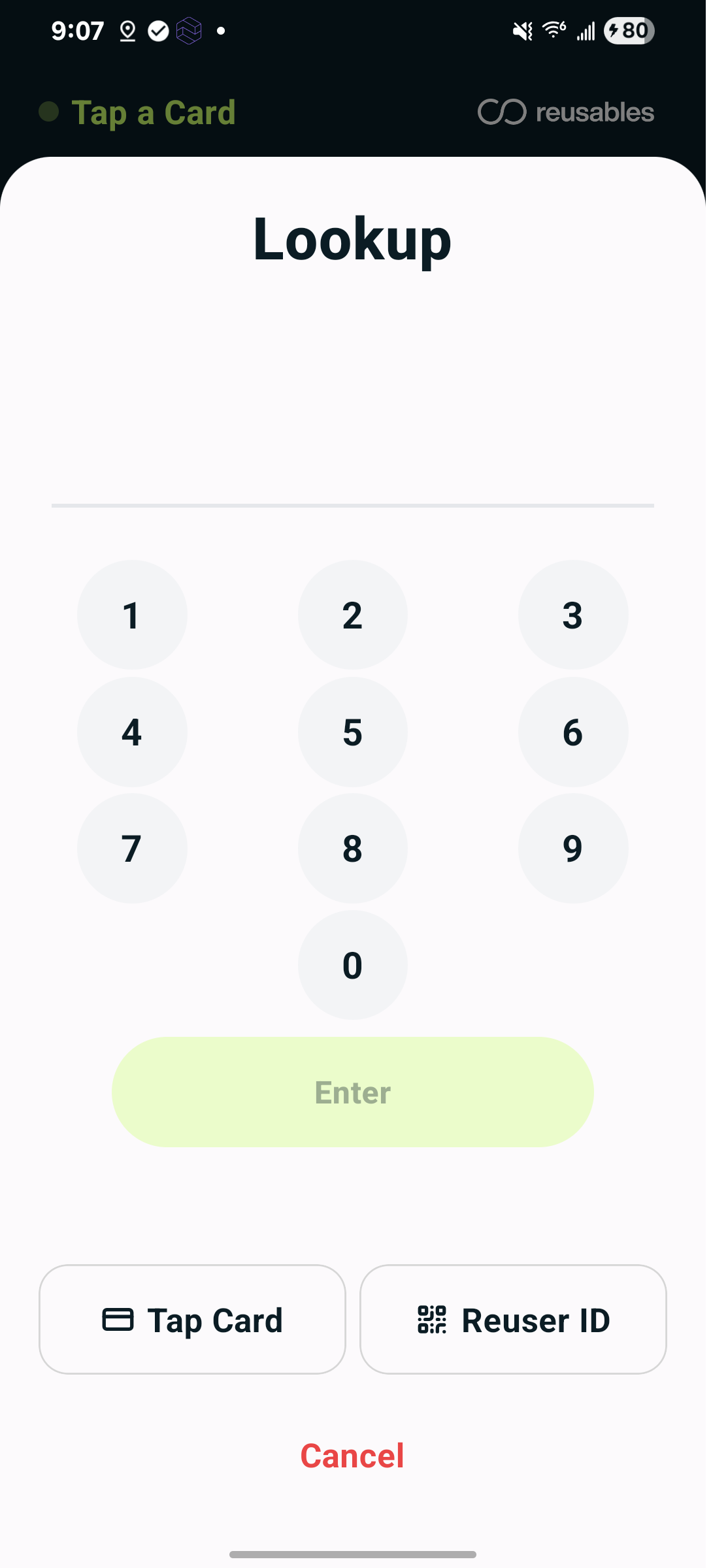
Section titled “Member number lookup”If a Reuser doesn’t have a card to tap, tap the Lookup footer button to open a number pad. Type their member number (about 5 digits) and press Enter. A preview of the matching account appears — confirm it to continue.
Scanning Reuser ID
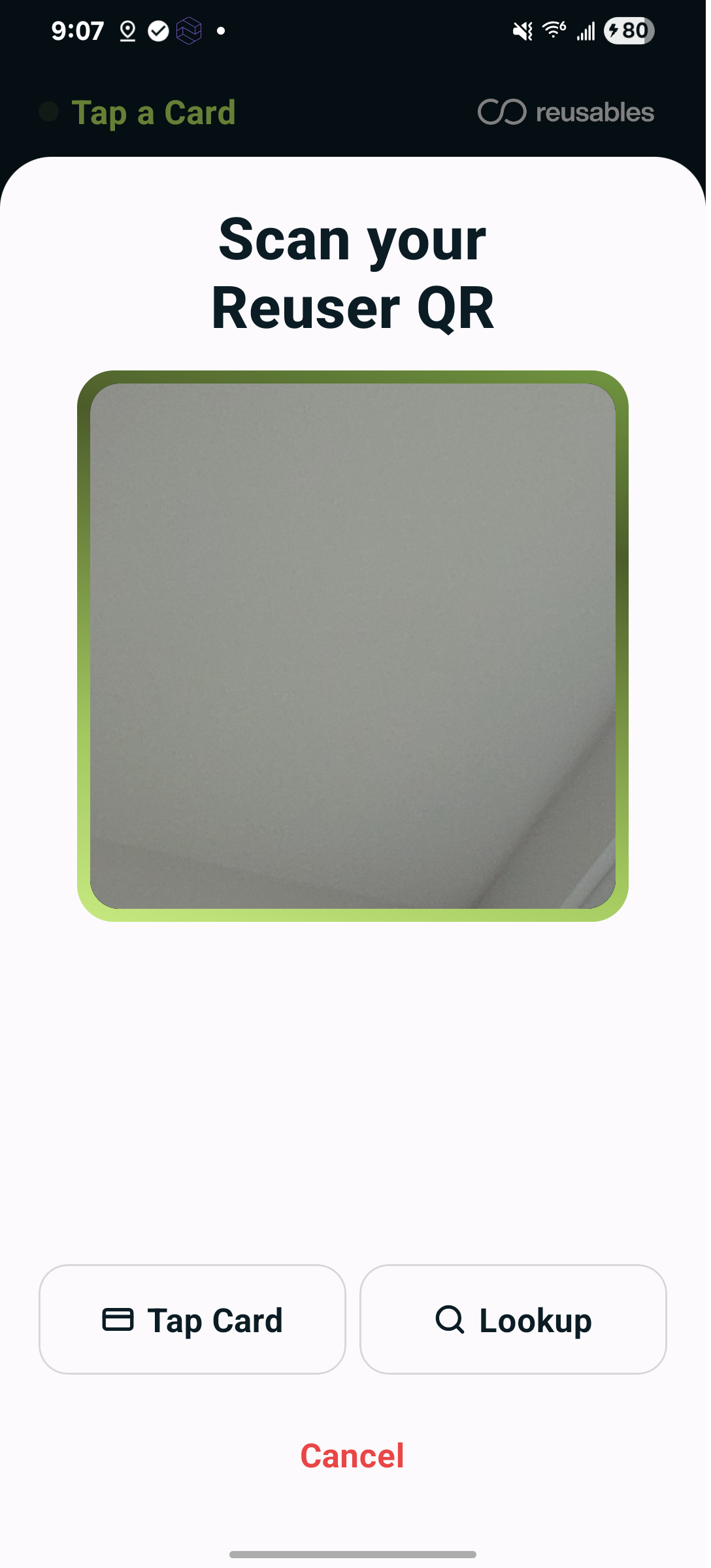
Section titled “Scanning Reuser ID”If a reuser has a Reuser QR pass, tap the Reuser ID footer button to switch the window to the camera. The reuser holds up their pass and it’s scanned automatically.
When Student Card and Payment Card readers are both enabled
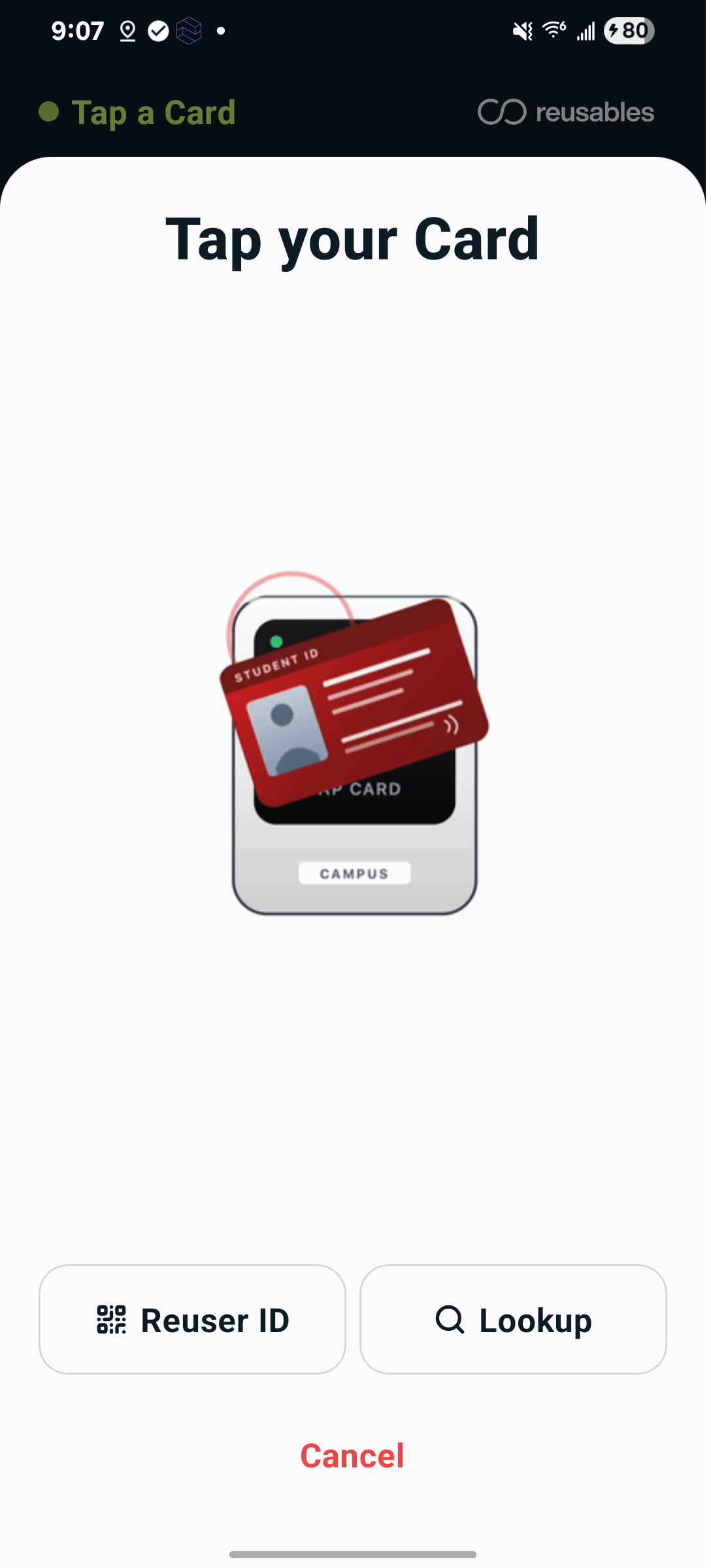
Section titled “When Student Card and Payment Card readers are both enabled”At sites with both readers, the identify window cycles between the Payment Card and Student Card prompts. Either works at any time — the reuser can tap (or swipe) a Student ID Card on the Student Card Reader just as they’d tap a card on the Payment Card Reader.
If a Reuser cannot be identified
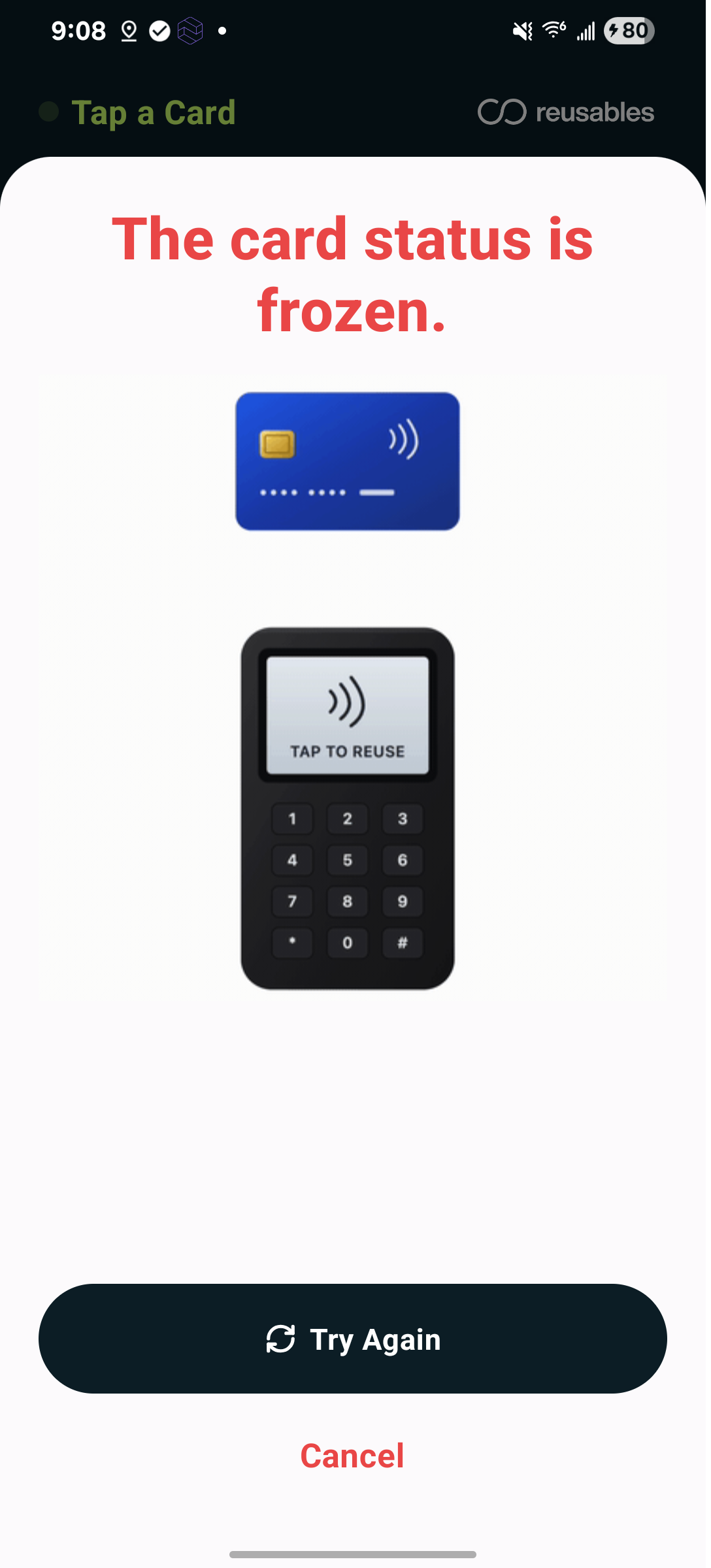
Section titled “If a Reuser cannot be identified”A short message appears right in the window (for example, a card that’s frozen). Tap Try Again, or switch to another method.
Good to know
Section titled “Good to know”- Your location’s rules haven’t changed. Container limits and any charges (e.g., for extra containers) still apply exactly as before.
- If nothing happens for about 2 minutes, the window closes by itself and the phone returns to the idle screen — just start again.
- Wi-Fi quick-fix: if a device seems disconnected, tap the serial number 10 times on the Version number in the footer to open Wi-Fi settings. If that doesn’t help, contact your Reusables representative.

Questions? Reach out to your Reusables contact or support@reusables.com. This page is kept up to date — share this link for the latest version.